Using Trezor Hardware Emulator
When developing and testing your Trezor integration, you don't necessarily need a physical hardware wallet. The Trezor hardware emulator allows you to fully test your integration in a local development environment without the need for actual devices.
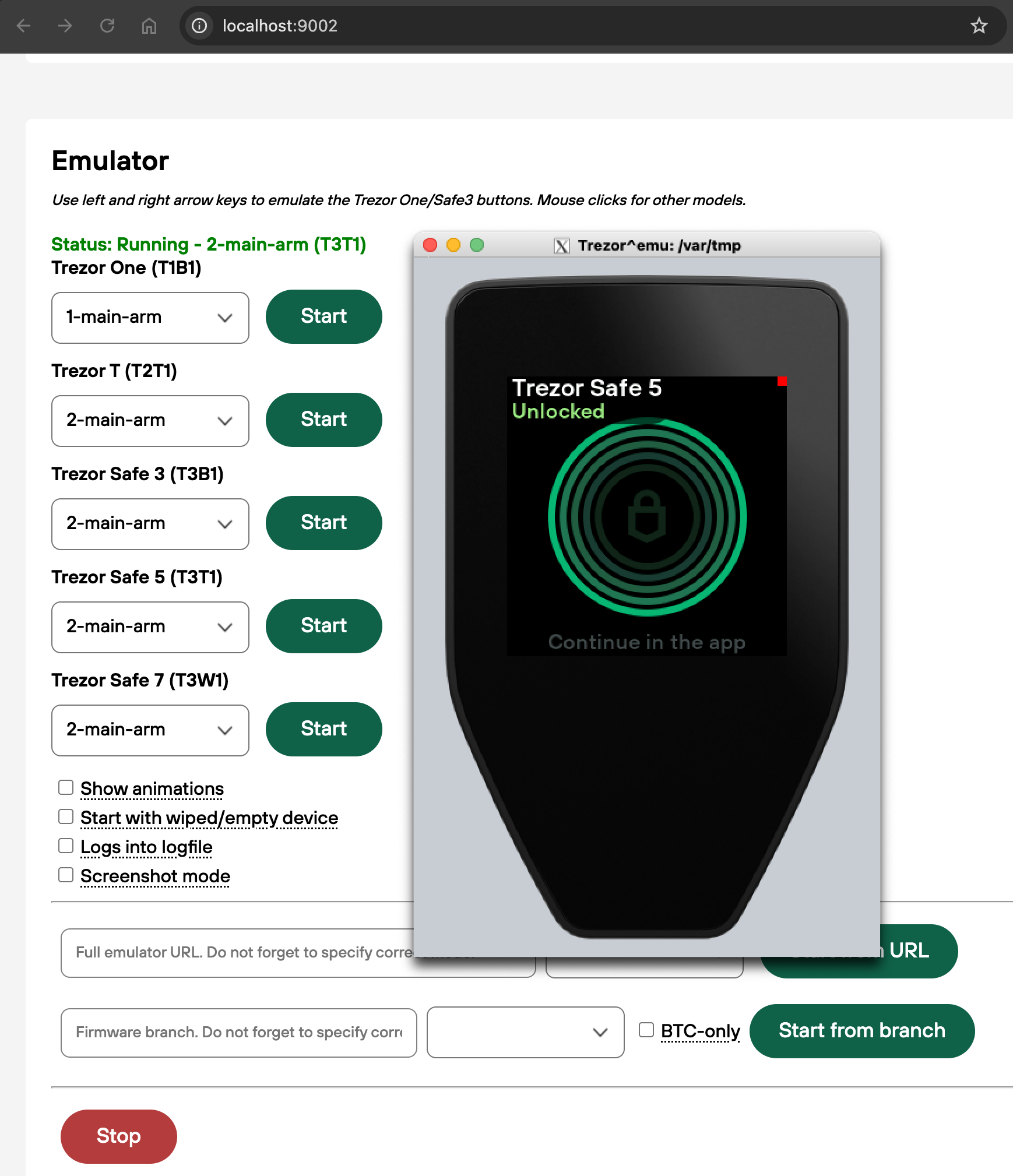
Getting Started with Trezor User Env
The easiest way to run a Trezor hardware emulator is using trezor-user-env, a comprehensive testing environment for Trezor hardware wallets.
Prerequisites
- Docker (on Linux, you need to be able to run it as non-root user, follow those steps)
- xhost on Linux
- XQuartz on macOS. Configure > Preferences > Security > Allow connections from network clients
- Reboot (sign out/sign in might work)
Steps
- Clone this repo and enter the directory
- Run
./run.sh- it will determine your platform and launch trezor-user-env. See./run.sh --helpfor some additional arguments. - Open http://localhost:9002.
git clone https://github.com/trezor/trezor-user-env.git
cd trezor-user-env
./run.sh
Connection Issues
In case you have installed Trezor Bridge (no longer supported) previously there will be a port conflict, please make sure it is not running. Either uninstall it completely or stop the service.
Also Trezor Bridge port might be occupied by Trezor Suite application if it is running (possibly on background). Trezor Suite normally relies on it's own bundled Bridge. To use the Bridge from trezor-user-env instead, you need to disable the bundled Bridge in Suite's debug settings.
- To enable debug settings, open Trezor Suite -> Settings and 5x click on the "Settings" title at the top of the page.
- Go to the "Debug" tab, scroll down to "Transport backends" and disable "Bridge server".
- Also disable "Run on startup" if you want to remember this setting for next launches of Suite.
- If you want to use a real device again, make sure to re-enable the "Bridge server" option.